How to Put Text on Your iPhone Lock Screen
Three ways to add your own words to your iPhone lock screen: a free wallpaper you make yourself, a widget below the clock, or a wallpaper that updates automatically.
There are three ways to put your own words on an iPhone lock screen:
- Make a wallpaper with text on it. This is free and needs no extra app.
- Add a widget below the clock. The widget shows text from an app, such as a reminder or an intention.
- Use a wallpaper that updates itself. A Shortcuts automation sets a new wallpaper when your words change.
Each method takes a few minutes. Here's how to do each one, and how to choose.
| Method | Cost | Updates when your words change | Best for |
|---|---|---|---|
| Wallpaper you make yourself | Free | No, you make a new image | A message you'll keep for a while |
| Widget below the clock | Free | Yes | Short text you want to change often |
| Automatic wallpaper | Depends on the app | Yes | Large text with a design you choose |
Method 1: Make a wallpaper with your words (no app needed)
You can do this with apps already on your iPhone.
Make the image
- Open Notes and start a new note.
- Type your words. Keep them short, and press Return a few times first so the text sits in the middle of the screen.
- Select the text and make it larger using the Aa formatting button.
- Take a screenshot by pressing the side button and volume up button together.
- Tap the screenshot preview, crop out the Notes toolbar, and save it to Photos.
You can also add text to one of your own photos with any photo editing app, then save the result.
Set it as your lock screen
- Touch and hold your lock screen until the gallery appears. You may need to unlock with Face ID first.
- Tap the + button to add a new lock screen.
- Choose Photos, then select your image.
- Move or zoom the image so your words sit below the clock and above the flashlight and camera buttons.
- Tap Add, then choose whether to use the same image for your Home Screen.
You can also go to Settings > Wallpaper > Add New Wallpaper.
The downside is that the text is fixed. If you want to change your words, you'll need to make a new image.
Method 2: Add a text widget below the clock
Lock screen widgets sit in the row just below the time. They show small pieces of information from an app, and they update on their own.
Apple's built-in Reminders app offers a lock screen widget that can show items from a list. A list with a single reminder, such as “Phone down at dinner,” will put that text on your lock screen. Other apps, including Clarido, offer widgets made for this purpose.
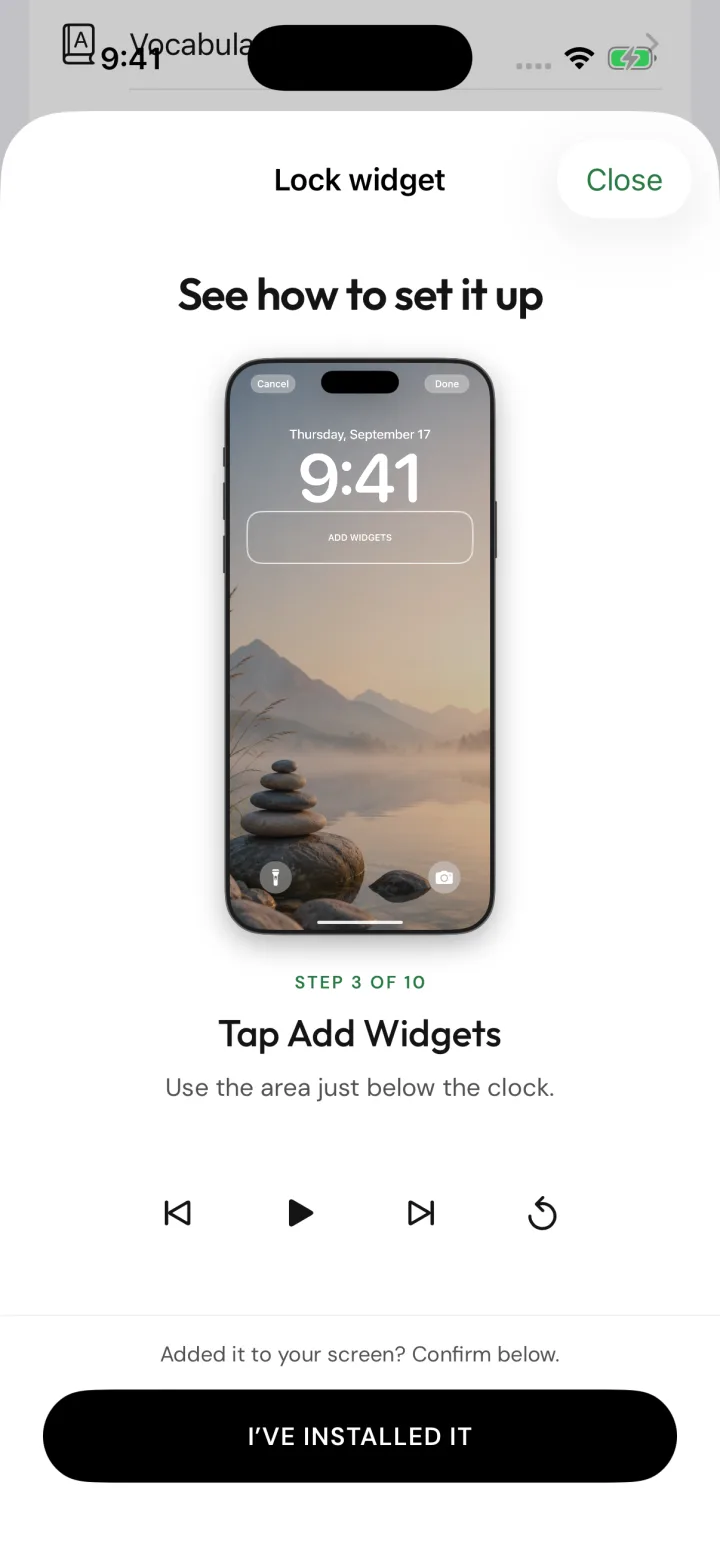
Tap the space below the clock.
When you customize your lock screen, the Add Widgets area appears just under the time.
From Clarido's in-app setup guide · Tap screen to enlarge.
How to add a lock screen widget
- Unlock your iPhone with Face ID, then touch and hold the lock screen.
- Tap Customize, then choose the lock screen you use every day.
- Tap Add Widgets, the area just below the clock.
- Scroll past the suggested widgets to the list of apps.
- Tap the app you want, such as Reminders or Clarido.
- Tap the widget you want. A rectangular widget needs two free spaces.
- Close the widget picker. The widget now appears beneath the time.
- Tap Done to save your lock screen.
If your widget isn't showing
- Check that there's room. The widget row has four spaces. A rectangular widget takes two, so remove another widget if the row is full.
- Check which lock screen you edited. If you have more than one, make sure you added the widget to the one you're using.
- Open the app once. If an app doesn't appear in the widget list, open it, then try again.
Method 3: Use a wallpaper that updates automatically
A widget keeps your words small. If you want them large, in the middle of your screen, with a background you chose, you need a wallpaper image. To keep it up to date without making a new image each time, you can use the Shortcuts app.
Shortcuts can run an automation when you open or close a particular app. An app that supports this can provide a shortcut that sets your wallpaper. Each time you close the app, the automation runs and your lock screen shows your latest design.
The general setup looks like this:
- Add the app's wallpaper shortcut to your Shortcuts library.
- In Shortcuts, open the Automation tab and create a new automation.
- Choose App as the trigger and select the app.
- Select Is Closed, and turn off Is Opened.
- Choose Run Immediately, so you're not asked to confirm each time.
- Tap Next and choose the wallpaper shortcut.
Close the app once to test it, allow any permission prompts, then check your lock screen.
What should you write?
Choose one short sentence that you want to remember when you pick up your phone. For 20 ideas, see what to put on your lock screen. If you'd like to write something about how you want to show up, how to set an intention walks you through it.
Adding text to your lock screen with Clarido
Clarido helps you choose the words first. Its coach helps you turn what matters to you into one intention, and the app's setup guides walk you through each step of adding it to your phone.
Choose where your words appear.
The lock screen and home screen widgets are free. Clarido Premium adds a designed wallpaper that updates through Shortcuts, plus an Apple Watch face.
Clarido sample content · Tap screen to enlarge.
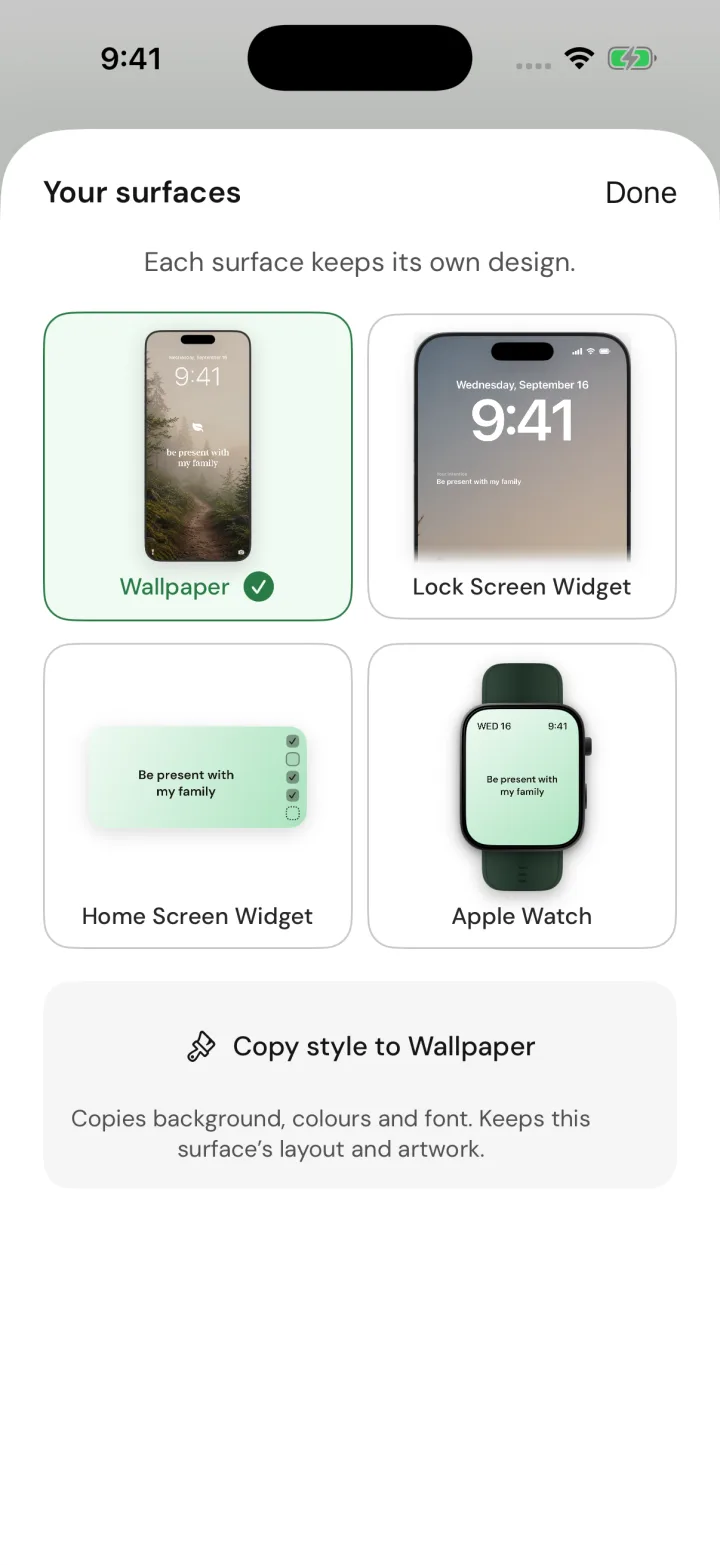
After that, a daily check-in asks whether you showed up for your intention, so you can keep it, change the wording, or choose a new one.
Get the next essay
Occasional articles on choosing what matters and returning to it. Unsubscribe anytime.